10 min read ResuFit Team
Free Resume Templates for Word, Google Docs, Pages & LibreOffice (2026)
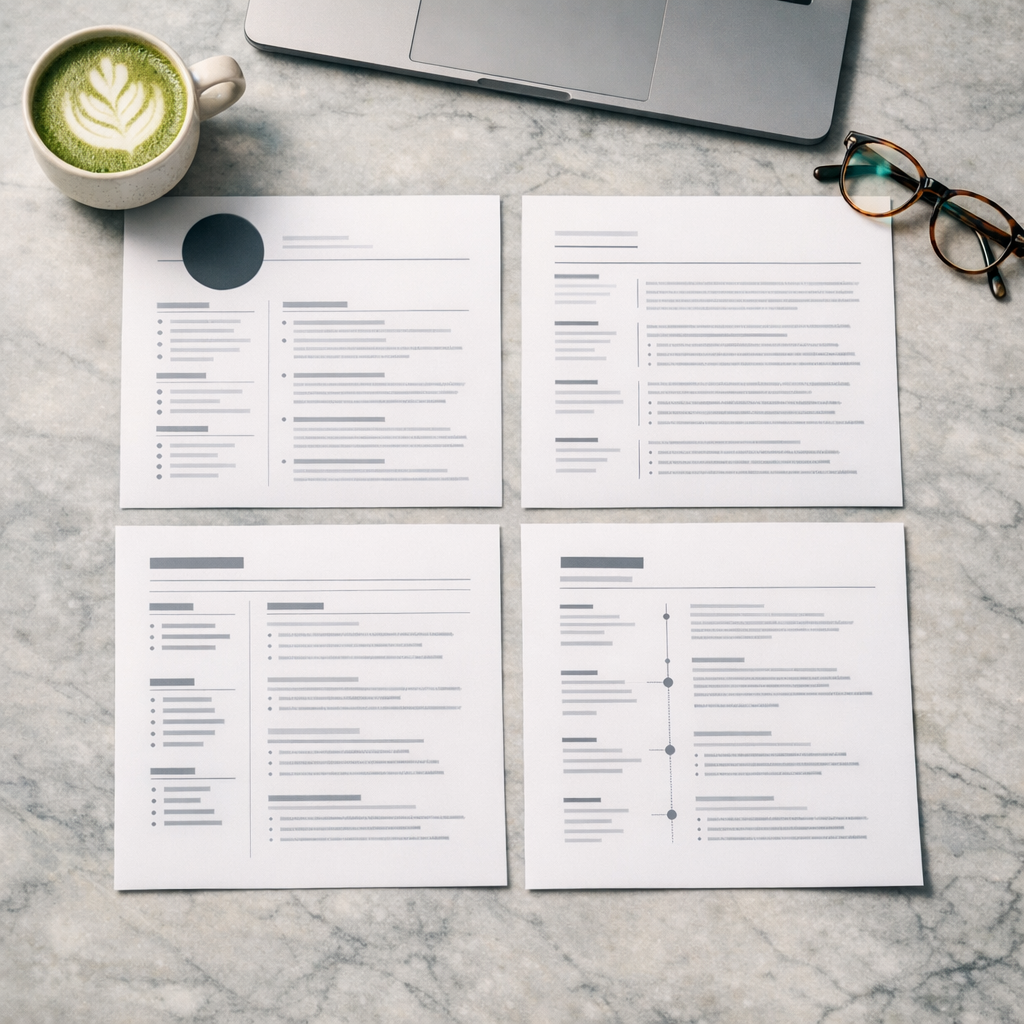
You have probably searched “free resume templates” at least once this week. The results are always the same: massive listicles with 50+ templates, zero mention of which ones actually work with your software, and affiliate links everywhere.
Here is what none of those articles tell you: the platform you use to edit your resume matters more than the template design. A gorgeous template that breaks when exported from Google Docs to Word is worse than a plain one that stays intact through every ATS on the planet.
This guide organizes free resume templates by the software you actually use — Microsoft Word, Google Docs, Apple Pages, and LibreOffice — with honest pros and cons for each.
Before picking a template, you need to understand one thing: most Applicant Tracking Systems are built to read .docx files. That is the native format for Microsoft Word. Everything else — Google Docs, Pages, LibreOffice — requires an export step, and that export step is where things go wrong.
Text boxes shift. Columns collapse. Custom fonts revert to defaults. What looked perfect on your screen arrives at the recruiter’s desk as a mess. The best free template in the world is useless if the ATS cannot parse it.
This does not mean you must use Word. It means you need to understand the export risks of your platform and choose templates accordingly.
Best for: Maximum ATS compatibility, corporate job applications, anyone who already has Office
Word is the reference implementation. When ATS developers test their parsing algorithms, they test against .docx files. This means:
Built-in templates: Open Word, click File > New, and search “resume.” Microsoft includes about 20 free templates ranging from minimalist to creative. The “Basic Resume” and “Bold Resume” templates are clean, ATS-friendly starting points.
Microsoft 365 template gallery: Even more options at templates.office.com, downloadable as .docx files. Filter by “resumes and cover letters” for curated options.
Third-party sites: Jobscan, Indeed, and various career sites offer free .docx templates. Just verify you are downloading actual .docx files, not PDFs or web-only formats.
Not all Word templates are equal. Avoid templates that use:
The safest Word templates use simple paragraphs, basic formatting (bold, italics, horizontal rules), and standard section headings. If you want your resume to follow modern formatting principles while staying ATS-safe, stick to single-column layouts with clear visual hierarchy through font sizes and weight rather than graphical elements.
Word is the path of least resistance for ATS compatibility. If you have access to it, use it. Your template options are the broadest, your export risks are zero, and you never have to wonder whether the recruiter sees what you see.
Best for: Anyone without Microsoft Office, collaborative editing, quick edits on any device
Google Docs is free, runs in any browser, and saves automatically. For job seekers who do not want to pay for Office, it is the obvious choice. The collaboration features are also excellent — share your resume with a friend for review without emailing files back and forth.
Open Google Docs, click Template Gallery, and you will find 5 resume templates: Coral, Modern Writer, Serif, Spearmint, and Swiss. They are clean, professional, and use standard fonts.
Coral is the most popular — it uses a subtle color accent and clean sections. Swiss is the most minimal and arguably the most ATS-friendly of the five.
Here is where Google Docs gets tricky. When you download as .docx (File > Download > Microsoft Word), things shift:
The fix: After downloading as .docx, open it in Word (or the free Word Online) and check the formatting. If you do not have Word, at minimum open the .docx back in Google Docs to verify nothing shifted. This takes 30 seconds and can save you from submitting a broken resume.
Sites like Goodocs.co, Template.net, and various design blogs offer free Google Docs resume templates. Many are more visually interesting than the built-in options. The same caution applies: test the .docx export before submitting.
Google Docs is a solid second choice. The templates are decent, the editing experience is smooth, and the price is right. Just always test your .docx export. Do not submit a Google Docs sharing link as your resume — yes, people do this, and no, recruiters do not find it charming.
Best for: Mac users who prioritize visual design, applying to creative roles where PDF submission is standard
Pages templates are undeniably attractive. Apple’s design team knows what they are doing, and the built-in resume templates have better typography and layout than most Word or Google Docs options. If you are applying to a design, creative, or marketing role where visual presentation matters and the company accepts PDF submissions, Pages can produce a striking resume.
Pages ships with about 6 resume templates. They tend toward clean, modern design with tasteful use of color and typography. The “Modern” and “Classic” variants are reasonable starting points.
Pages is a walled garden. Here is what goes wrong:
Pages is fine if:
Pages makes beautiful resumes. But beauty does not help if the ATS cannot read it. Unless you are confident the company reviews PDFs manually, you are taking a risk. Consider using Pages for your design, then recreating the layout in Word or Google Docs for the actual submission.
Best for: Linux users, privacy-conscious job seekers, anyone who wants Word-like functionality without the cost
LibreOffice Writer can open and save .docx files natively. It is free, open-source, and runs on Windows, Mac, and Linux. For people who want desktop word processing without a Microsoft subscription or Google account, it is the practical choice.
LibreOffice’s built-in template selection is thin — you might find 2-3 resume templates out of the box. They are functional but visually dated.
Better sources: The LibreOffice Extensions site and community template repositories offer more options. Look for templates in .ott (OpenDocument Template) format designed specifically for Writer.
LibreOffice has made huge progress with .docx compatibility, but gaps remain:
The good news: if you start with a simple template and save directly to .docx from the beginning (rather than working in .odt and converting later), compatibility is quite high.
LibreOffice is perfectly viable for resume creation. Choose simple templates, save to .docx from the start, and test your output. It will not win any design awards, but it will get your resume through an ATS without surprises.
| Feature | Word | Google Docs | Pages | LibreOffice |
|---|---|---|---|---|
| Native .docx | Yes | No (export) | No (export) | Yes (save-as) |
| ATS reliability | Excellent | Good | Fair | Good |
| Template selection | 20+ built-in | 5 built-in | 6 built-in | 2-3 built-in |
| Cost | Microsoft 365 or one-time purchase | Free | Free (Mac only) | Free |
| Collaboration | Good | Excellent | Limited | Limited |
| Best export format | .docx | .docx | .docx | |
| Font consistency | High | Medium | Low (cross-platform) | Medium |
Regardless of which tool you use, these rules apply to every free resume template:
1. Test your export. Download, convert, or export your resume, then open it in a different application. If it looks different, fix it before submitting.
2. Use standard fonts. Arial, Calibri, Garamond, and Georgia render consistently across platforms. Avoid trendy fonts that may not be installed on the recruiter’s system.
3. Avoid text boxes. Every platform lets you insert text boxes for visual flair. Every ATS struggles with them. Use standard paragraphs instead.
4. Keep it single-column. Two-column layouts look modern but parse poorly. If you want visual interest, use indentation, bold headings, and horizontal rules.
5. Name your file properly. “FirstName-LastName-Resume.docx” — not “resume_final_v3_REAL_FINAL.docx.”
Free templates give you a starting point, but they cannot tailor your content to a specific job posting. If you are applying to multiple positions — and you should be customizing for each one — manually adjusting a template for every application gets exhausting fast.
This is where tools like ResuFit come in. Instead of wrestling with formatting across platforms, you paste the job description and get an ATS-optimized resume generated for that specific role. No export headaches, no font compatibility issues, no wondering whether your Google Docs template survived the .docx conversion.
For a broader look at what is available, our guide to truly free resume builders covers the full range of options without the bait-and-switch pricing you will find elsewhere.
Pick the platform you are comfortable with, choose a simple template, and test your export. That is genuinely all there is to it. Word gives you the least friction. Google Docs is the most accessible. Pages makes the prettiest output. LibreOffice is the most principled choice.
None of them matter if your content is weak. A perfectly formatted resume with vague bullet points will lose to a slightly messy one with specific, quantified achievements every time. Get the platform and template right, then spend your real energy on what you actually write.
How does your resume score?
Check Your Score FreeGet the latest tips on resume writing and career advice.
Microsoft Word offers the most ATS-reliable templates because .docx is the native format most Applicant Tracking Systems are built to parse. Google Docs exports to .docx cleanly but can introduce minor formatting shifts. Apple Pages and LibreOffice work fine for human readers but need careful exporting.
Yes. Google Docs includes about 5 built-in resume templates accessible from the template gallery at no cost. You only need a free Google account. Third-party templates from sites like Goodocs and BestTemplates are also free, though some require attribution.
You can, but you must export to PDF or .docx before submitting. Pages files are not accepted by any ATS. When exporting to Word, check for shifted margins, broken columns, and missing fonts. PDF export is generally more reliable from Pages.
LibreOffice Writer can save directly to .docx format, which ATS systems accept. However, complex formatting like text boxes or embedded charts may not convert cleanly. Stick to simple, single-column templates and always verify the exported .docx in Word or Google Docs before submitting.
When the job posting does not specify a format, .docx is the safest choice for ATS compatibility. If the posting says PDF is fine, go with PDF to lock your formatting. Never submit in .pages, .odt, or .doc format.
Using templates with text boxes, tables, or multi-column layouts that look great on screen but get scrambled by ATS parsers. The second most common mistake is not testing the exported file. Always open your final .docx or PDF in a different application to catch formatting issues before submitting.